
Windows 11 Native Security Assessment: Single Host Penetration Testing Using Only Built-in Tools
Project Overview & Objectives
In modern cybersecurity, relying solely on third-party security suites or automated vulnerability scanners can leave blind spots. Understanding how to audit a system using its own architecture is a fundamental skill for both penetration testers (living-off-the-land techniques) and blue team defenders (hardening and forensics).
This project demonstrates a thorough local security assessment conducted on a live Windows 11 system using nothing but native Windows command-line and PowerShell tools.
Objectives
By the end of this project, you will know how to use native utilities to:
Enumerate users, active groups, and granular access privileges.
Assess password policies and local security accounts.
Discover local network exposure and map listening ports to active system PIDs.
Review running processes, underlying services, and scheduled tasks.
Audit firewall states and evaluate file system access permissions (icacls).
Examine OS security event logs for anomalous activity.
Produce structured, professional defensive recommendations.
Laboratory Setup
Before executing assessment commands, establish a structured working directory to isolate data collection and evidence preservation. Open a command terminal and initialize the workspace:
PowerShell
mkdir C:\PentestLab
mkdir C:\PentestLab\Screenshots
mkdir C:\PentestLab\Evidence
Initial Reconnaissance
To establish a baseline, collect fundamental hardware, operating system, and build architecture data. Run PowerShell as an Administrator and execute:
PowerShell
Get-ComputerInfo
This populates hundreds of system properties. Focus on auditing core metadata variables:
Asset Item | Target Assessment Value |
Hostname | FABIORODRIGUES |
OS Version / Edition | Microsoft Windows 11 Pro |
Build Number | 22631 (OS Version: 10.0.22631) |
System SKU / Family | 1518083 / UltraNoteV 15 Systems |
Installed RAM | 32 GB (33,554,432 KB Physical) |
Processor Architecture | Intel(R) Core(TM) i7-8550U CPU @ 1.80GHz (1 Processor, 8 Logical Cores) |
To explicitly verify the active identity context and hostname via the classic command interface, run:
DOS
hostname
whoami
whoami confirms the execution context is operating as fabiorodrigues\caraf.


User Account Enumeration
Malicious actors frequently seek out forgotten, stale, or default accounts left enabled on a workstation to bypass standard authentication workflows. To inventory all local security accounts on the host database, execute:
DOS
net user
The output reveals five distinct local accounts configured on this machine:
Administrator
caraf
DefaultAccount
Guest
WDAGUtilityAccount (Windows Defender Application Guard)
Granular User Profiling
Next, analyze the properties of the default systemic accounts to see if they pose an exposure risk.
DOS
net user Administrator
net user Guest
Assessment Findings:
Administrator Account Status: Account active: No. The built-in master administrator profile is disabled by default, which follows security best practices.
Guest Account Status: Account active: No. The guest account profile is disabled, removing unauthenticated vector access.


Privilege & Group Membership Enumeration
An account's name doesn't dictate its capabilities—its access tokens, group memberships, and assigned privileges do. To discover the security tokens bound to our current execution shell, execute group and privilege checks:
DOS
whoami /groups
whoami /priv
Token Analysis
Running whoami /groups reveals that our current identity caraf is structurally associated with security identifiers (SIDs) including:
BUILTIN\Administrators (Alias | S-1-5-32-544)
BUILTIN\Users (Alias | S-1-5-32-545)
NT AUTHORITY\Local account and member of Administrators group (S-1-5-114)
Security Note: Notice that the BUILTIN\Administrators group lists its attribute as "Group used for deny only" and the execution context runs at a Medium Mandatory Level (S-1-16-8192). This indicates User Account Control (UAC) is active. The shell is currently restricted and must be elevated explicitly to invoke high-integrity administrator tokens.
Explaining Privilege Rights
Running whoami /priv returns the specific user rights assigned to the current context:
SeChangeNotifyPrivilege (Bypass traverse checking): Enabled by default. Allows the user to pass through directory folders to reach files even if they don't have explicit permissions for the parent directories.
SeShutdownPrivilege (Shut down the system): Disabled/Available. Grants authority to cleanly shut down the local operating system.
SeTimeZonePrivilege (Change the time zone): Disabled/Available. Controls whether a user can modify the system time-zone clock.

Local Administrator Review
To verify every account capable of exerting full system modification rights, audit the membership of the local administrators group directly:
DOS
net localgroup administrators
On this host, the group contains:
Administrator (The disabled built-in master account)
caraf (The primary active user profile)
Assessment Questions
How many active admins exist? One active human administrator account (caraf).
Are they necessary? Yes, as a standalone workstation, at least one user requires administrative permissions to manage updates and system changes.
Are any old accounts present? No legacy corporate profiles or residual user accounts were discovered during this audit sweep.

Password Policy Audit
Even a highly hardened asset can be compromised if user accounts use weak passwords vulnerable to offline cracking or online brute-forcing. To audit the global account database settings, execute:
DOS
net accounts
Password Configuration Matrix
Evaluating the configuration against security benchmarks highlights significant configuration gaps:
Policy Metric | Current System Configuration | Hardened Target Baseline | Assessment Status |
Minimum Password Length | 0 Characters | 12+ Characters | At Risk (Weak) |
Lockout Threshold | Never (0 attempts allowed) | 5 Failed Attempts | At Risk (Critical Vulnerability) |
Maximum Password Age | 42 Days | 60–90 Days | Acceptable |
Password History Length | None | 24 Passwords Remembered | At Risk (Weak) |
Critical Finding: The system does not enforce a lockout threshold. An attacker with network line-of-sight can launch a continuous, high-speed automated dictionary attack against local authentication protocols without triggering an account lockout.

Network Discovery & Interface Configuration
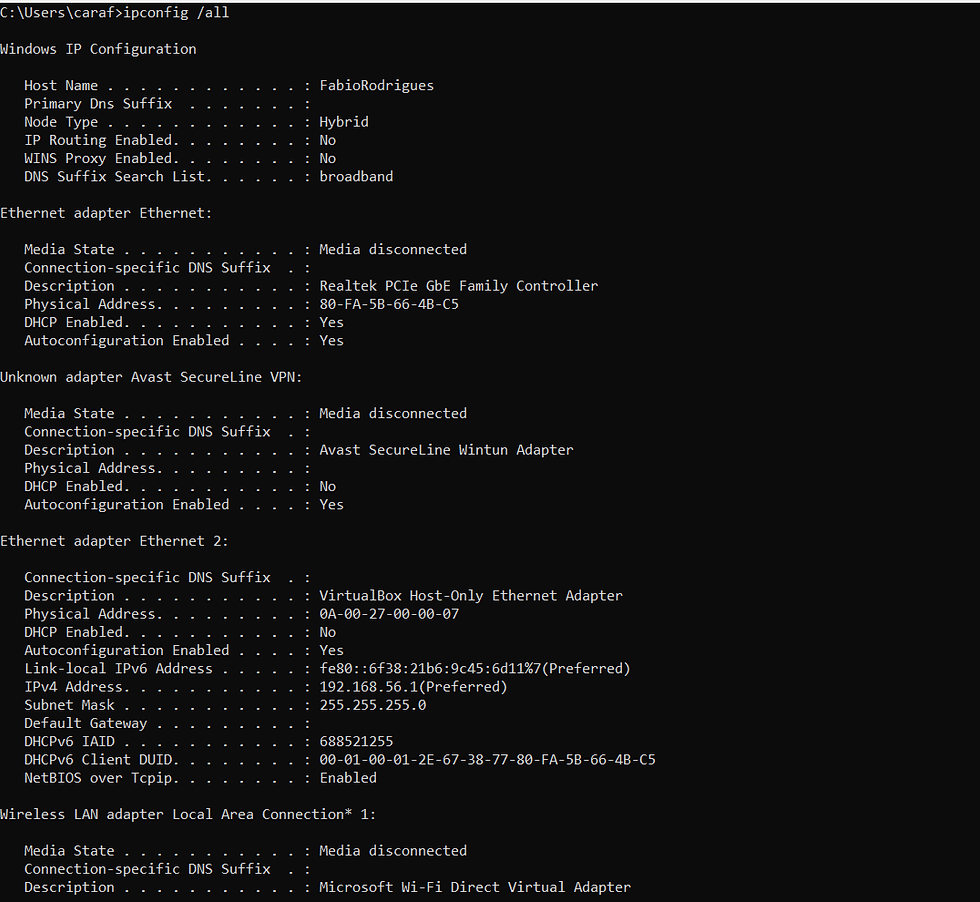
Understanding a host's network settings reveals its potential exposure to attackers on the local network. Run the following command to catalog all network interfaces:
DOS
ipconfig /all
Network Architecture Review
Interface Profiles: Look for active wireless adapters (Wi-Fi) or hardwired connections (Ethernet).
DHCP vs. Static Configuration: If DHCP Enabled is listed as Yes, the endpoint automatically acquires lease configurations from a local server or router.
Network Segment: Private IP allocations within standard RFC 1918 blocks (e.g., 192.168.x.x, 10.x.x.x, or 172.16.x.x) indicate the system sits behind a Network Address Translation (NAT) firewall, insulating it from direct public internet scanning.
Port Enumeration & Network Exposure
A system exposes network services via listening TCP and UDP ports. Any open port represents an application handling external input. To list active network connections and listening ports along with their controlling Process IDs (PIDs), run:
DOS
netstat -ano
Focus specifically on sockets displaying a state of LISTENING.
Port to Process Mapping
Once an open port is identified, map it to its parent program file using the process identification filter:
DOS
tasklist /fi "pid eq [INSERT_PID_NUMBER]"
Common infrastructure ports to watch for include:
Port 135 (RPC Endpoint Mapper): Essential for Windows client-to-client remote communications.
Port 445 (SMB - Server Message Block): Used for network file sharing. If unpatched or weakly configured, this is a frequent target for network exploitation vectors (such as EternalBlue).

Process Analysis & Resource Performance
Attackers often hide malicious code by naming it similarly to legitimate system processes (e.g., naming malware svch0st.exe instead of svchost.exe). To audit all actively executing application images, use:
DOS
tasklist /v
For a more granular, performance-oriented review that bubbles up resource utilization, run this PowerShell command:
PowerShell
Get-Process | Sort CPU -Descending | Select-Object -First 10 -Property Name, CPU, Id, Description
Threat Hunting Indicators
Look for duplicate processes running out of non-standard directories (e.g., an instance of explorer.exe running out of C:\Users\... instead of C:\Windows\).
Audit processes executing without description headers, publisher signatures, or associated application windows.

System Service Enumeration
Services are background processes that run without user intervention, often launching before a user even logs in. To inspect the operational states of the service database architecture, query the service controller:
DOS
sc query
To look at a critical endpoint security service like Windows Defender, query its configuration properties:
DOS
sc qc WinDefend
Service Security Review
SERVICE_START_NAME: Look at what account the service logs in as. Critical background engines like security agents or file monitors typically run as NT AUTHORITY\SYSTEM, granting them complete control over the host.
START_TYPE: Ensure essential protection services are configured to launch automatically (AUTO_START) to prevent malware from disabling them across reboots.


Scheduled Tasks & Persistence Audit
Malware frequently establishes persistence (the ability to survive a system reboot) by creating scheduled tasks. Run the following command to export an verbose registry breakdown of all scheduled operations:
DOS
schtasks /query /fo LIST /v
Auditing Automation Schedules
Filter through tasks running under high-privilege system tokens (Run As User: SYSTEM). While common software tools like Microsoft Edge, OneDrive, and Windows Update legitimately deploy automated updates via scheduled tasks, look closely for non-standard entries executing scripts (.ps1, .bat, .vbs) or binaries located within temporary paths or user profile directories.

Local Firewall State Review
The Windows Defender Advanced Firewall serves as the host's first line of defense against network intrusion. To inspect the operational posture of all network filtering environments (Domain, Private, and Public profiles), run:
DOS
netsh advfirewall show allprofiles
To review the complete list of individual inbound and outbound firewall rule parameters, run:
DOS
netsh advfirewall firewall show rule name=all
Firewall Configuration Check
Firewall State: Verify that all profiles are explicitly marked ON.
Inbound/Outbound Policies: The secure baseline standard is to block inbound connections by default (BlockInbound) while allowing outbound requests (AllowOutbound). Look for any custom allow rules that broadly expose dangerous administrative tools like Remote Desktop (RDP) or remote management interfaces to the local network.


File Permission Assessment via Access Control Lists (ACLs)
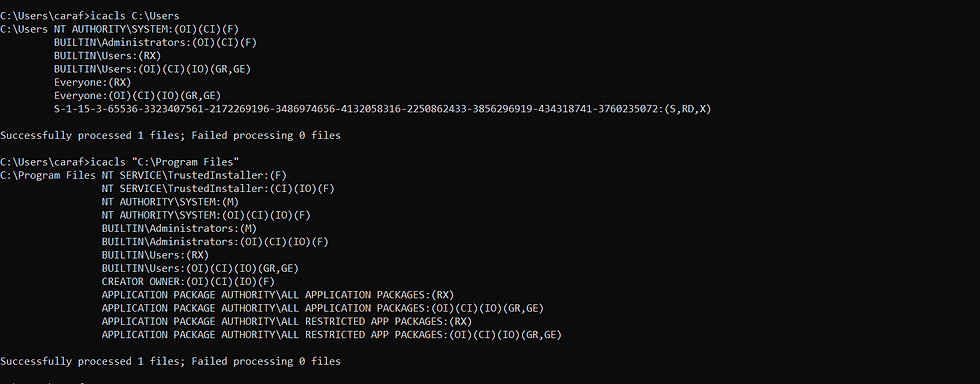
Weak file permissions can allow a low-privilege user to modify system files and escalate their privileges to an administrator. To review the access security inheritance on user directory spaces and program file structures, run:
DOS
icacls C:\Users
icacls "C:\Program Files"
Interpreting Access Right Variables
Look for these key permission flags during your audit:
(F) - Full Access (Complete configuration authority)
(M) - Modify Access (Ability to rewrite or delete execution binaries)
Security Warning: If standard unprivileged group identities like Everyone or BUILTIN\Users possess Full Control (F) or Modify (M) permissions over binary directories within C:\Program Files, an attacker can swap a legitimate application executable with a malicious one. This can lead to privilege escalation the next time an administrator runs that program.
Security Event Log Investigation
Windows records security events—such as user logons and object access—to its internal Event Logs. To query the local security event architecture for recent authentication activity, run:
PowerShell
Get-WinEvent -LogName Security -MaxEvents 50
To specifically hunt for signs of an active brute-force or password-spraying attack, isolate Event ID 4625 (An account failed to log on):
PowerShell
Get-WinEvent -FilterHashtable @{LogName='Security';ID=4625} -MaxEvents 20
Log Review Checklist
Event 4624: Successful Logon.
Event 4625: Failed Logon. A high volume of 4625 events occurring in a short window indicates an active automated password-guessing attempt against the workstation.

Browser Forensics
User applications, particularly web browsers, store highly sensitive data locally. An attacker who gains access to a user profile can harvest a wealth of information from these application paths. Check the local application data directory:
DOS
cd %LOCALAPPDATA%
From this directory, explore the storage paths for popular browsers:
Google Chrome: Google\Chrome\User Data\Default\
Microsoft Edge: Microsoft\Edge\User Data\Default\
Mozilla Firefox: Mozilla\Firefox\Profiles\
Forensic Artifact Exposure
Within these paths, browsers store unencrypted SQLite databases containing a history of visited sites, download records, and web session cache files. If an attacker extracts these files, they can map out a user's digital footprint and potentially discover sensitive session information.


Structured Security Findings
This section compiles the vulnerabilities discovered during the security assessment into a professional report format.
Finding 1: Critical Missing Account Lockout Policy
Severity: Medium-High
Evidence Source Reference:
Vulnerability Description: The local account database does not enforce an account lockout threshold (Lockout Threshold: Never).
Operational Risk Impact: An attacker with network access to the workstation can run endless automated credential-guessing attacks against local accounts without risk of being locked out, increasing the likelihood of a successful brute-force compromise.
Remediation Recommendation: Define an explicit account lockout policy using Local Security Policy (secpol.msc) or Group Policy. Set the account lockout threshold to 5 failed attempts and configure a lockout duration of at least 30 minutes.
Finding 2: Insufficient Minimum Password Length Restrictions
Severity: Medium
Evidence Source Reference: [See Assessment Screenshot 04-PasswordPolicy.png]
Vulnerability Description: The host's minimum password length configuration is set to 0 characters.
Operational Risk Impact: Users can set weak, short passwords (or even no password at all), making the system highly vulnerable to dictionary and credential-stuffing attacks.
Remediation Recommendation: Update the local password policy to require a minimum length of 12 characters and enforce complexity requirements (requiring uppercase letters, lowercase letters, numbers, and special characters).

Executive Summary
A comprehensive local security assessment was performed against a standalone Windows 11 Pro asset using exclusively native command-line interfaces and PowerShell utilities. By avoiding external utilities, this audit validated that an administrative user context possesses all the tools necessary to perform a rigorous host-based assessment.
The assessment revealed critical vulnerabilities in the system's authentication configuration—specifically, the complete absence of an account lockout policy and no minimum password length requirements. While the system's firewall profiles are active and default system accounts (such as Administrator and Guest) are properly disabled, the weak password policy makes the host vulnerable to network-based password guessing.
Implementing the defensive recommendations outlined in this report—specifically hardening local group policies and password requirements—will significantly reduce the asset's attack surface and improve its security posture against internal and external threats.


Comments